
Your cart
Your cart is empty
Continue shoppingDrawer menu

Seven Eolas Prints filaments have profiles built into PrusaSlicer: PLA, PLA Matte, Ingeo 850, Ingeo 870, PETG, PETG UV Resistant and TPU 93A. There is nothing to download: open Configuration → Configuration Wizard, go to Filaments, select Eolas Prints in the Vendor column, tick the profiles and click Finish. They are tuned for Prusa MINI+, MK3S+, MK3.5, MK3.9, MK4S, XL and CORE One printers, including high-flow nozzles. For the other Eolas materials, use the settings table below or OrcaSlicer, which includes all 18.
Last updated 7 October 2026 for PrusaSlicer 2.9.6. Eolas Prints profiles ship with PrusaSlicer and are kept up to date through its configuration updates.
The profiles are already installed with PrusaSlicer – you only choose which ones appear in your filament list.
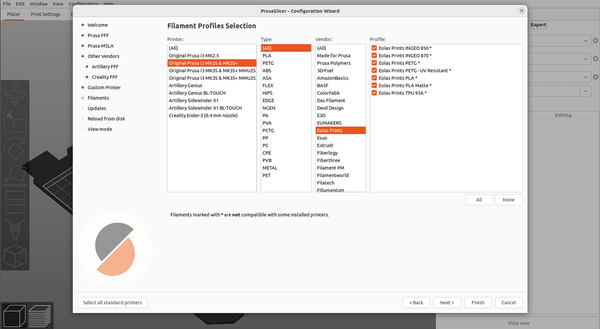
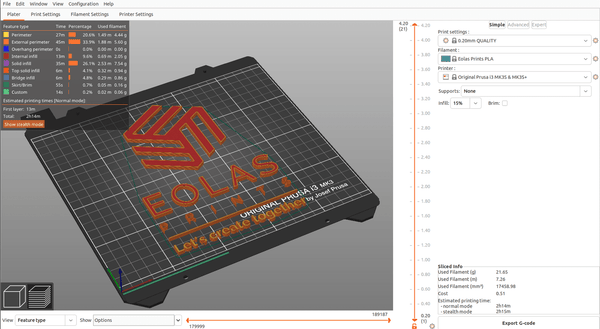
The Eolas Prints profiles include printer-specific variants for the Prusa MINI/MINI+, MK3S/MK3S+, MK3.5, MK3.9, MK4/MK4S, XL, XL+ and CORE One / CORE One L, for 0.4, 0.5, 0.6 and 0.8 mm nozzles and the high-flow (HF) nozzles. PrusaSlicer picks the right variant automatically. TPU 93A is available on the MK3S, MK3.9, MK4/MK4S, XL and CORE One families, but not on the MINI or MK3.5. Choosing a Prusa? Read our Prusa buyer’s guide.
These are the values PrusaSlicer uses for an MK4S or CORE One with a standard 0.4 mm nozzle.
| Material | PrusaSlicer profile | Nozzle (1st layer / other) | Bed (1st layer / other) | Max flow |
|---|---|---|---|---|
| PLA Premium | Eolas Prints PLA | 230 / 220 °C | 60 / 60 °C | 15 mm³/s |
| PLA Matte | Eolas Prints PLA Matte | 230 / 220 °C | 60 / 60 °C | 14 mm³/s |
| PLA Ingeo 850 | Eolas Prints INGEO 850 | 215 / 210 °C | 60 / 60 °C | 15 mm³/s |
| PLA Ingeo 870 | Eolas Prints INGEO 870 | 220 / 215 °C | 68 / 65 °C | 15 mm³/s |
| PETG | Eolas Prints PETG | 235 / 240 °C | 85 / 85–90 °C | 12 mm³/s |
| PETG UV Resistant | Eolas Prints PETG - UV Resistant | 232 / 237 °C | 85 / 85–90 °C | 12 mm³/s |
| TPU Flex 93A | Eolas Prints TPU 93A | 240 / 235 °C | 30 / 30 °C | 3.5–4 mm³/s |
PrusaSlicer adjusts these values per printer and nozzle. For example, PLA prints at 215 / 208 °C on the MINI+ and MK3S+, and PETG's maximum flow is 8 mm³/s on the MINI+.
For the other Eolas Prints filaments, start from the PrusaSlicer profile in the second column, change the temperatures in Filament Settings → Filament and save it as your own preset, for example Eolas Prints ASA.
| Material | Start from | Nozzle (1st layer / other) | Bed (1st layer / other) |
|---|---|---|---|
| PLA High Speed | Eolas Prints PLA | 220 / 220 °C | 60 / 60 °C |
| PLA Silk | Eolas Prints PLA | 220 / 215 °C | 60 / 60 °C |
| PLA Neon | Eolas Prints PLA | 215 / 210 °C | 60 / 60 °C |
| PLA Antibacterial | Eolas Prints PLA | 220 / 216 °C | 60 / 60 °C |
| PLA Transition | Eolas Prints PLA | 215 / 210 °C | 60 / 60 °C |
| PETG Transition | Eolas Prints PETG | 245 / 240 °C | 85 / 80 °C |
| ABS | Generic ABS | 260 / 255 °C | 105 / 100 °C |
| ASA | Prusament ASA | 270 / 260 °C | 105 / 100 °C |
| TPU Flex D53 | Eolas Prints TPU 93A | 225 / 220 °C | 50 / 45 °C |
| TPU Flex D60 UV Resistant | Eolas Prints TPU 93A | 230 / 225 °C | 60 / 55 °C |
| TPU Transition | Eolas Prints TPU 93A | 225 / 220 °C | 55 / 50 °C |
Keep the maximum volumetric speed of the profile you started from, but lower it to 8 mm³/s for PLA Silk and 10 mm³/s for PLA Neon. Print ABS and ASA in an enclosed printer such as the CORE One. Prefer a ready-made profile for every material? OrcaSlicer includes all 18 Eolas Prints profiles and supports Prusa printers.
Using another slicer? Eolas Prints profiles are built into OrcaSlicer and available as a free import for Bambu Studio. Comparing slicers? Read our guide to the best 3D printer software.
Yes. PrusaSlicer includes profiles for Eolas Prints PLA, PLA Matte, Ingeo 850, Ingeo 870, PETG, PETG UV Resistant and TPU 93A under the vendor Eolas Prints.
No. The profiles install with PrusaSlicer. Open Configuration → Configuration Wizard, go to Filaments, select Eolas Prints under Vendor, tick the materials and click Finish.
We recommend the latest PrusaSlicer 2.9 release. PrusaSlicer downloads profile updates automatically when it starts.
The MINI/MINI+, MK3S/MK3S+, MK3.5, MK3.9, MK4/MK4S, XL, XL+ and CORE One / CORE One L, with standard and high-flow nozzles. TPU 93A is not available on the MINI or MK3.5.
They are not built into PrusaSlicer yet. Start from the profile listed in our table, set the recommended temperatures and save it as your own preset – or use OrcaSlicer, which has all 18 Eolas Prints profiles.
PrusaSlicer's Eolas Prints profiles are written for Prusa printers. For other brands we recommend OrcaSlicer, where the Eolas Prints profiles work with any printer.
The profile gets you most of the way. For the cleanest results, run a quick temperature tower and flow test on your machine.
About the author
Sergio Peciña is a qualified Electrical & Electronics Engineer and Eolas Prints' Technical Design Engineer, with over 10 years of experience in 3D printing. He founded the maker spaces at the University of La Rioja and IDIVAL Santander. Every Eolas Prints filament is manufactured in-house in Cantabria, Spain, to ISO 9001 and ISO 14001 standards.
Shop the filaments these profiles are made for: PLA | PLA Matte | PETG | PETG UV | TPU 93A – ISO-certified, made in Spain.


